Information displayed differs from synth to synth depending on what features are supported
5. Import ends automatically when no sounds are received for some time. Total backup-ed sounds is displayed, e.g. : [](https://wiki.synthsonline.com/uploads/images/gallery/2023-01/D0qimage.png) 6. Click **Done** button to close the window Imported sound are now available in a bank visible in the **Banks** menu section of your synthesizer, e.g. :[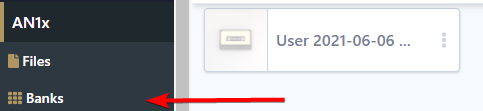](https://wiki.synthsonline.com/uploads/images/gallery/2023-01/q6Cimage.png) # Advanced: More options Advanced options can be displayed by expanding the **More options** section. #### Custom sysex request This option allows to send a custom system exclusive message to the synthesizer in order to start the backup from the browser. In this case you need to know which message to send to initiate the backup. To start the backup from the browser: 1. Type the system exclusive message in the **Custom sysex request** field (refer to synth manual to know if this is supported) 2. Click **Send button** [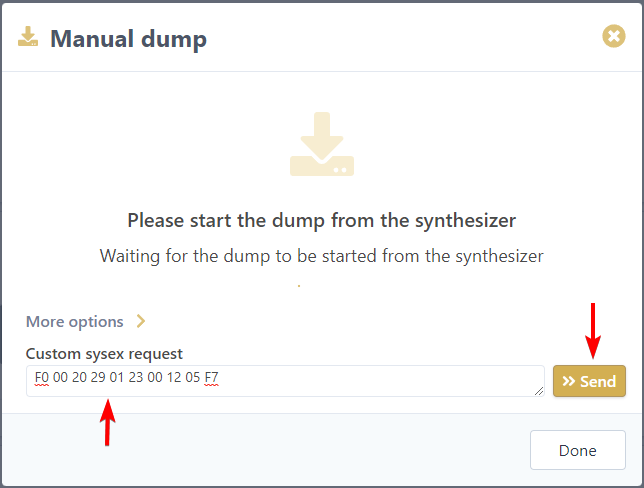](https://wiki.synthsonline.com/uploads/images/gallery/2023-01/t0Wimage.png) If you sent the correct command to the synthesizer and it support its, messages will start to be transfered in the same way as the standard manual dump. # Location of imported messages Imported sound are available in a bank visible in the **Banks** menu section of your synthesizer, e.g. :[](https://wiki.synthsonline.com/uploads/images/gallery/2023-01/q6Cimage.png) # Simplified backupThis feature is only available with **Premium** plan
Simplified backup allows to request synthesizer sound messages from your browser. Check [supported synths page](https://synthsonline.com/supported) that have the **Simplified backup** feature to know if your synthesizers support this feature.For accurate processing of messages **do not use or change any parameter of your synth** during this process
### Backup all banks This feature allows to request and backup all supported banks of a synthesizer at once from the browser. To start the backup 1. Click on **Backup supported banks** to start the backup [](https://wiki.synthsonline.com/uploads/images/gallery/2023-01/vnXimage.png) This will start the sound backup process. ### Backup selected banksThis feature is not supported on synthesizers that only have on bank
To start the backup: 1. Expand the **More options** section 2. Select the banks to backup [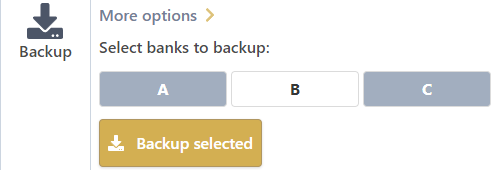](https://wiki.synthsonline.com/uploads/images/gallery/2023-01/dPNimage.png) 3. Click on **Backup selected** This will start the partial sound backup process. ### Backup progress Backup progress is displayed when banks are requested. Backup section is replaced by a progress bar until the end of the operation: [](https://wiki.synthsonline.com/uploads/images/gallery/2023-01/L0bimage.png) ### Location of imported messages Imported sound are available in a bank visible in the **Banks** menu section of your synthesizer, e.g. :[](https://wiki.synthsonline.com/uploads/images/gallery/2023-01/q6Cimage.png)